PicoClaw

PicoClaw: Ultra-Efficient AI Assistant in Go

$10 Hardware · <10MB RAM · <1s Boot · 皮皮虾,我们走!

Go Hardware License
Website Docs Wiki
Twitter Discord

[中文](README.zh.md) | [日本語](README.ja.md) | [Português](README.pt-br.md) | [Tiếng Việt](README.vi.md) | [Français](README.fr.md) | [Italiano](README.it.md) | [Bahasa Indonesia](README.id.md) | **English**
--- > **PicoClaw** is an independent open-source project initiated by [Sipeed](https://sipeed.com). It is written entirely in **Go** — not a fork of OpenClaw, NanoBot, or any other project. 🦐 PicoClaw is an ultra-lightweight personal AI Assistant inspired by [NanoBot](https://github.com/HKUDS/nanobot), refactored from the ground up in Go through a self-bootstrapping process, where the AI agent itself drove the entire architectural migration and code optimization. ⚡️ Runs on $10 hardware with <10MB RAM: That's 99% less memory than OpenClaw and 98% cheaper than a Mac mini!

> [!CAUTION] > **🚨 SECURITY & OFFICIAL CHANNELS / 安全声明** > > * **NO CRYPTO:** PicoClaw has **NO** official token/coin. All claims on `pump.fun` or other trading platforms are **SCAMS**. > > * **OFFICIAL DOMAIN:** The **ONLY** official website is **[picoclaw.io](https://picoclaw.io)**, and company website is **[sipeed.com](https://sipeed.com)** > * **Warning:** Many `.ai/.org/.com/.net/...` domains are registered by third parties. > * **Warning:** picoclaw is in early development now and may have unresolved network security issues. Do not deploy to production environments before the v1.0 release. > * **Note:** picoclaw has recently merged a lot of PRs, which may result in a larger memory footprint (10–20MB) in the latest versions. We plan to prioritize resource optimization as soon as the current feature set reaches a stable state. ## 📢 News 2026-03-17 🚀 **v0.2.3 Released!** System tray UI (Windows & Linux), sub-agent status tracking (`spawn_status`), experimental gateway hot-reload, cron security gates, and 2 security fixes. PicoClaw now at **25K ⭐**! 2026-03-09 🎉 **v0.2.1 — Biggest update yet!** MCP protocol support, 4 new channels (Matrix/IRC/WeCom/Discord Proxy), 3 new providers (Kimi/Minimax/Avian), vision pipeline, JSONL memory store, and model routing. 2026-02-28 📦 **v0.2.0** released with Docker Compose support and Web UI launcher. 2026-02-26 🎉 PicoClaw hit **20K stars** in just 17 days! Channel auto-orchestration and capability interfaces landed.
Older news... 2026-02-16 🎉 PicoClaw hit 12K stars in one week! Community maintainer roles and [roadmap](ROADMAP.md) officially posted. 2026-02-13 🎉 PicoClaw hit 5000 stars in 4 days! Project Roadmap and Developer Group setup underway. 2026-02-09 🎉 **PicoClaw Launched!** Built in 1 day to bring AI Agents to $10 hardware with <10MB RAM. 🦐 PicoClaw,Let's Go!
## ✨ Features 🪶 **Ultra-Lightweight**: <10MB Memory footprint — 99% smaller than OpenClaw core functionality.* 💰 **Minimal Cost**: Efficient enough to run on $10 Hardware — 98% cheaper than a Mac mini. ⚡️ **Lightning Fast**: 400X Faster startup time, boot in <1 second even on 0.6GHz single core. 🌍 **True Portability**: Single self-contained binary across RISC-V, ARM, MIPS, and x86, One-click to Go! 🤖 **AI-Bootstrapped**: Autonomous Go-native implementation — 95% Agent-generated core with human-in-the-loop refinement. 🔌 **MCP Support**: Native [Model Context Protocol](https://modelcontextprotocol.io/) integration — connect any MCP server to extend agent capabilities. 👁️ **Vision Pipeline**: Send images and files directly to the agent — automatic base64 encoding for multimodal LLMs. 🧠 **Smart Routing**: Rule-based model routing — simple queries go to lightweight models, saving API costs. _*Recent versions may use 10–20MB due to rapid feature merges. Resource optimization is planned. Startup comparison based on 0.8GHz single-core benchmarks (see table below)._ | | OpenClaw | NanoBot | **PicoClaw** | | ----------------------------- | ------------- | ------------------------ | ----------------------------------------- | | **Language** | TypeScript | Python | **Go** | | **RAM** | >1GB | >100MB | **< 10MB*** | | **Startup**
(0.8GHz core) | >500s | >30s | **<1s** | | **Cost** | Mac Mini $599 | Most Linux SBC
~$50 | **Any Linux Board**
**As low as $10** | PicoClaw > 📋 **[Hardware Compatibility List](docs/hardware-compatibility.md)** — See all tested boards, from $5 RISC-V to Raspberry Pi to Android phones. Your board not listed? Submit a PR! ## 🦾 Demonstration ### 🛠️ Standard Assistant Workflows

🧩 Full-Stack Engineer

🗂️ Logging & Planning Management

🔎 Web Search & Learning

Develop • Deploy • Scale Schedule • Automate • Memory Discovery • Insights • Trends
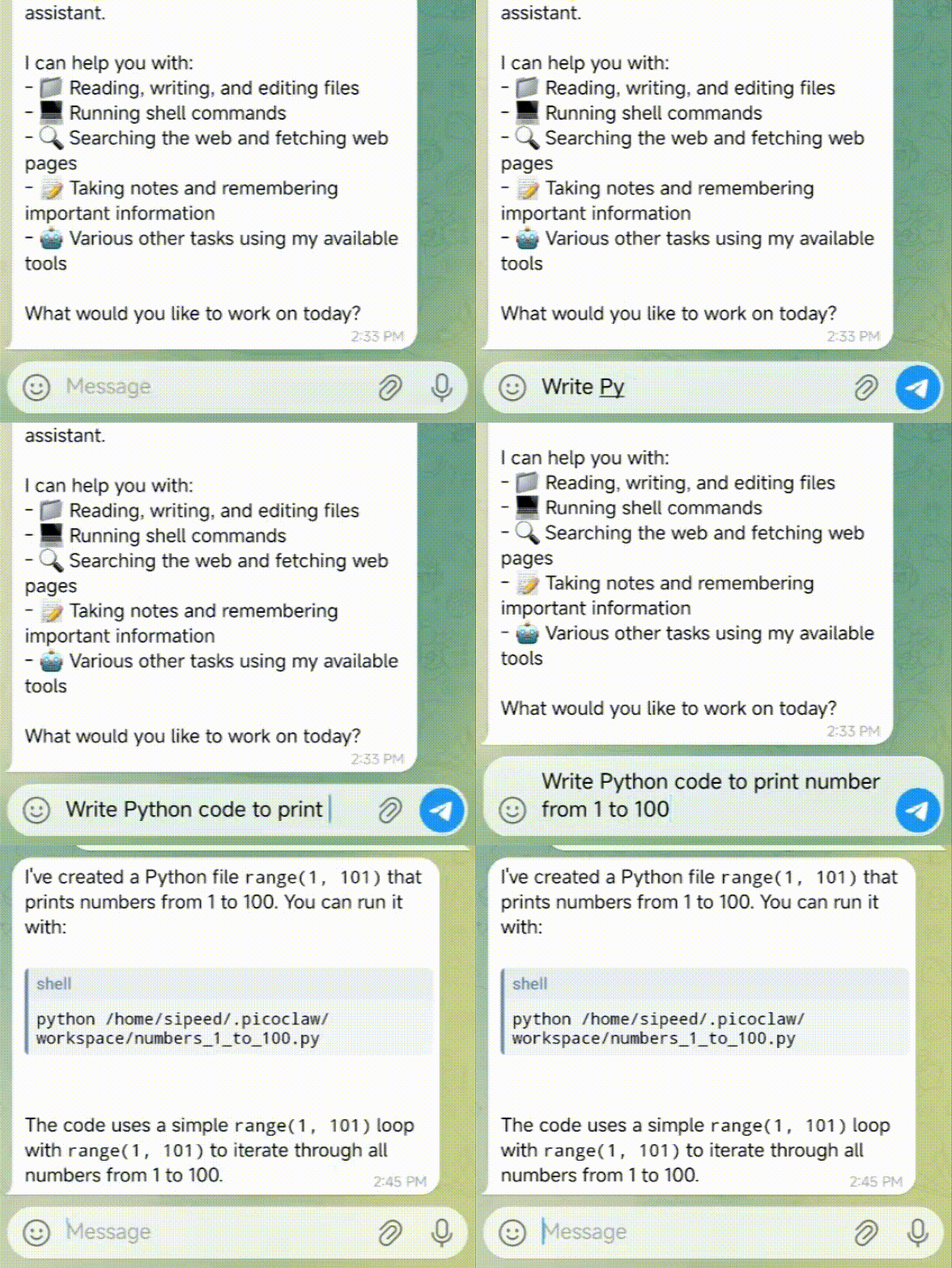
### 📱 Run on old Android Phones Give your decade-old phone a second life! Turn it into a smart AI Assistant with PicoClaw. Quick Start: 1. **Install [Termux](https://github.com/termux/termux-app)** (Download from [GitHub Releases](https://github.com/termux/termux-app/releases), or search in F-Droid / Google Play). 2. **Execute cmds** ```bash # Download the latest release from https://github.com/sipeed/picoclaw/releases wget https://github.com/sipeed/picoclaw/releases/latest/download/picoclaw_Linux_arm64.tar.gz tar xzf picoclaw_Linux_arm64.tar.gz pkg install proot termux-chroot ./picoclaw onboard # chroot provides a standard Linux filesystem layout ``` And then follow the instructions in the "Quick Start" section to complete the configuration! PicoClaw ### 🐜 Innovative Low-Footprint Deploy PicoClaw can be deployed on almost any Linux device! - $9.9 [LicheeRV-Nano](https://www.aliexpress.com/item/1005006519668532.html) E(Ethernet) or W(WiFi6) version, for Minimal Home Assistant - $30~50 [NanoKVM](https://www.aliexpress.com/item/1005007369816019.html), or $100 [NanoKVM-Pro](https://www.aliexpress.com/item/1005010048471263.html) for Automated Server Maintenance - $50 [MaixCAM](https://www.aliexpress.com/item/1005008053333693.html) or $100 [MaixCAM2](https://www.kickstarter.com/projects/zepan/maixcam2-build-your-next-gen-4k-ai-camera) for Smart Monitoring 🌟 More Deployment Cases Await! ## 📦 Install ### Download from picoclaw.io (Recommended) Visit **[picoclaw.io](https://picoclaw.io)** — the official website auto-detects your platform and provides one-click download. No need to manually pick an architecture. ### Download precompiled binary Alternatively, download the binary for your platform from the [GitHub Releases](https://github.com/sipeed/picoclaw/releases) page. ### Build from source (for development) ```bash git clone https://github.com/sipeed/picoclaw.git cd picoclaw make deps # Build, no need to install make build # Build for multiple platforms make build-all # Build for Raspberry Pi Zero 2 W (32-bit: make build-linux-arm; 64-bit: make build-linux-arm64) make build-pi-zero # Build And Install make install ``` **Raspberry Pi Zero 2 W:** Use the binary that matches your OS: 32-bit Raspberry Pi OS → `make build-linux-arm`; 64-bit → `make build-linux-arm64`. Or run `make build-pi-zero` to build both. ## 📚 Documentation For detailed guides, see the docs below. The README covers quick start only. ```bash # 1. Clone this repo git clone https://github.com/sipeed/picoclaw.git cd picoclaw # 2. First run — auto-generates docker/data/config.json then exits docker compose -f docker/docker-compose.yml --profile gateway up # The container prints "First-run setup complete." and stops. # 3. Set your API keys vim docker/data/config.json # Set provider API keys, bot tokens, etc. # 4. Start docker compose -f docker/docker-compose.yml --profile gateway up -d ``` > [!TIP] > **Docker Users**: By default, the Gateway listens on `127.0.0.1` which is not accessible from the host. If you need to access the health endpoints or expose ports, set `PICOCLAW_GATEWAY_HOST=0.0.0.0` in your environment or update `config.json`. ```bash # 5. Check logs docker compose -f docker/docker-compose.yml logs -f picoclaw-gateway # 6. Stop docker compose -f docker/docker-compose.yml --profile gateway down ``` ### Launcher Mode (Web Console) The `launcher` image includes all three binaries (`picoclaw`, `picoclaw-launcher`, `picoclaw-launcher-tui`) and starts the web console by default, which provides a browser-based UI for configuration and chat. ```bash docker compose -f docker/docker-compose.yml --profile launcher up -d ``` Open http://localhost:18800 in your browser. The launcher manages the gateway process automatically. > [!WARNING] > The web console does not yet support authentication. Avoid exposing it to the public internet. ### Agent Mode (One-shot) ```bash # Ask a question docker compose -f docker/docker-compose.yml run --rm picoclaw-agent -m "What is 2+2?" # Interactive mode docker compose -f docker/docker-compose.yml run --rm picoclaw-agent ``` ### Update ```bash docker compose -f docker/docker-compose.yml pull docker compose -f docker/docker-compose.yml --profile gateway up -d ``` ### 🚀 Quick Start > [!TIP] > Set your API Key in `~/.picoclaw/config.json`. Get API Keys: [Volcengine (CodingPlan)](https://console.volcengine.com) (LLM) · [OpenRouter](https://openrouter.ai/keys) (LLM) · [Zhipu](https://open.bigmodel.cn/usercenter/proj-mgmt/apikeys) (LLM). Web search is optional — get a free [Tavily API](https://tavily.com) (1000 free queries/month) or [Brave Search API](https://brave.com/search/api) (2000 free queries/month). **1. Initialize** ```bash picoclaw onboard ``` **2. Configure** (`~/.picoclaw/config.json`) ```json { "agents": { "defaults": { "workspace": "~/.picoclaw/workspace", "model_name": "gpt-5.4", "max_tokens": 8192, "temperature": 0.7, "max_tool_iterations": 20 } }, "model_list": [ { "model_name": "ark-code-latest", "model": "volcengine/ark-code-latest", "api_key": "sk-your-api-key" }, { "model_name": "gpt-5.4", "model": "openai/gpt-5.4", "api_key": "your-api-key", "request_timeout": 300 }, { "model_name": "claude-sonnet-4.6", "model": "anthropic/claude-sonnet-4.6", "api_key": "your-anthropic-key" } ], "tools": { "web": { "brave": { "enabled": false, "api_key": "YOUR_BRAVE_API_KEY", "max_results": 5 }, "tavily": { "enabled": false, "api_key": "YOUR_TAVILY_API_KEY", "max_results": 5 }, "duckduckgo": { "enabled": true, "max_results": 5 }, "perplexity": { "enabled": false, "api_key": "YOUR_PERPLEXITY_API_KEY", "max_results": 5 }, "searxng": { "enabled": false, "base_url": "http://your-searxng-instance:8888", "max_results": 5 } } } } ``` > **New**: The `model_list` configuration format allows zero-code provider addition. See [Model Configuration](#model-configuration-model_list) for details. > `request_timeout` is optional and uses seconds. If omitted or set to `<= 0`, PicoClaw uses the default timeout (120s). **3. Get API Keys** * **LLM Provider**: [OpenRouter](https://openrouter.ai/keys) · [Zhipu](https://open.bigmodel.cn/usercenter/proj-mgmt/apikeys) · [Anthropic](https://console.anthropic.com) · [OpenAI](https://platform.openai.com) · [Gemini](https://aistudio.google.com/api-keys) * **Web Search** (optional): * [Brave Search](https://brave.com/search/api) - Paid ($5/1000 queries, ~$5-6/month) * [Perplexity](https://www.perplexity.ai) - AI-powered search with chat interface * [SearXNG](https://github.com/searxng/searxng) - Self-hosted metasearch engine (free, no API key needed) * [Tavily](https://tavily.com) - Optimized for AI Agents (1000 requests/month) * DuckDuckGo - Built-in fallback (no API key required) > **Note**: See `config.example.json` for a complete configuration template. **4. Chat** ```bash picoclaw agent -m "What is 2+2?" ``` That's it! You have a working AI assistant in 2 minutes. --- ## 💬 Chat Apps Talk to your picoclaw through Telegram, Discord, WhatsApp, Matrix, QQ, DingTalk, LINE, or WeCom > **Note**: All webhook-based channels (LINE, WeCom, etc.) are served on a single shared Gateway HTTP server (`gateway.host`:`gateway.port`, default `127.0.0.1:18790`). There are no per-channel ports to configure. Note: Feishu uses WebSocket/SDK mode and does not use the shared HTTP webhook server. | Channel | Setup | | ------------ | ---------------------------------- | | **Telegram** | Easy (just a token) | | **Discord** | Easy (bot token + intents) | | **WhatsApp** | Easy (native: QR scan; or bridge URL) | | **Matrix** | Medium (homeserver + bot access token) | | **QQ** | Easy (AppID + AppSecret) | | **DingTalk** | Medium (app credentials) | | **LINE** | Medium (credentials + webhook URL) | | **WeCom AI Bot** | Medium (Token + AES key) |
Telegram (Recommended) **1. Create a bot** * Open Telegram, search `@BotFather` * Send `/newbot`, follow prompts * Copy the token **2. Configure** ```json { "channels": { "telegram": { "enabled": true, "token": "YOUR_BOT_TOKEN", "allow_from": ["YOUR_USER_ID"] } } } ``` > Get your user ID from `@userinfobot` on Telegram. **3. Run** ```bash picoclaw gateway ``` **4. Telegram command menu (auto-registered at startup)** PicoClaw now keeps command definitions in one shared registry. On startup, Telegram will automatically register supported bot commands (for example `/start`, `/help`, `/show`, `/list`) so command menu and runtime behavior stay in sync. Telegram command menu registration remains channel-local discovery UX; generic command execution is handled centrally in the agent loop via the commands executor. If command registration fails (network/API transient errors), the channel still starts and PicoClaw retries registration in the background.
Discord **1. Create a bot** * Go to * Create an application → Bot → Add Bot * Copy the bot token **2. Enable intents** * In the Bot settings, enable **MESSAGE CONTENT INTENT** * (Optional) Enable **SERVER MEMBERS INTENT** if you plan to use allow lists based on member data **3. Get your User ID** * Discord Settings → Advanced → enable **Developer Mode** * Right-click your avatar → **Copy User ID** **4. Configure** ```json { "channels": { "discord": { "enabled": true, "token": "YOUR_BOT_TOKEN", "allow_from": ["YOUR_USER_ID"] } } } ``` **5. Invite the bot** * OAuth2 → URL Generator * Scopes: `bot` * Bot Permissions: `Send Messages`, `Read Message History` * Open the generated invite URL and add the bot to your server **Optional: Group trigger mode** By default the bot responds to all messages in a server channel. To restrict responses to @-mentions only, add: ```json { "channels": { "discord": { "group_trigger": { "mention_only": true } } } } ``` You can also trigger by keyword prefixes (e.g. `!bot`): ```json { "channels": { "discord": { "group_trigger": { "prefixes": ["!bot"] } } } } ``` **6. Run** ```bash picoclaw gateway ```
WhatsApp (native via whatsmeow) PicoClaw can connect to WhatsApp in two ways: - **Native (recommended):** In-process using [whatsmeow](https://github.com/tulir/whatsmeow). No separate bridge. Set `"use_native": true` and leave `bridge_url` empty. On first run, scan the QR code with WhatsApp (Linked Devices). Session is stored under your workspace (e.g. `workspace/whatsapp/`). The native channel is **optional** to keep the default binary small; build with `-tags whatsapp_native` (e.g. `make build-whatsapp-native` or `go build -tags whatsapp_native ./cmd/...`). - **Bridge:** Connect to an external WebSocket bridge. Set `bridge_url` (e.g. `ws://localhost:3001`) and keep `use_native` false. **Configure (native)** ```json { "channels": { "whatsapp": { "enabled": true, "use_native": true, "session_store_path": "", "allow_from": [] } } } ``` If `session_store_path` is empty, the session is stored in `<workspace>/whatsapp/`. Run `picoclaw gateway`; on first run, scan the QR code printed in the terminal with WhatsApp → Linked Devices.
QQ **1. Create a bot** - Go to [QQ Open Platform](https://q.qq.com/#) - Create an application → Get **AppID** and **AppSecret** **2. Configure** ```json { "channels": { "qq": { "enabled": true, "app_id": "YOUR_APP_ID", "app_secret": "YOUR_APP_SECRET", "allow_from": [] } } } ``` > Set `allow_from` to empty to allow all users, or specify QQ numbers to restrict access. **3. Run** ```bash picoclaw gateway ```
DingTalk **1. Create a bot** * Go to [Open Platform](https://open.dingtalk.com/) * Create an internal app * Copy Client ID and Client Secret **2. Configure** ```json { "channels": { "dingtalk": { "enabled": true, "client_id": "YOUR_CLIENT_ID", "client_secret": "YOUR_CLIENT_SECRET", "allow_from": [] } } } ``` > Set `allow_from` to empty to allow all users, or specify DingTalk user IDs to restrict access. **3. Run** ```bash picoclaw gateway ```
Matrix **1. Prepare bot account** * Use your preferred homeserver (e.g. `https://matrix.org` or self-hosted) * Create a bot user and obtain its access token **2. Configure** ```json { "channels": { "matrix": { "enabled": true, "homeserver": "https://matrix.org", "user_id": "@your-bot:matrix.org", "access_token": "YOUR_MATRIX_ACCESS_TOKEN", "allow_from": [] } } } ``` **3. Run** ```bash picoclaw gateway ``` For full options (`device_id`, `join_on_invite`, `group_trigger`, `placeholder`, `reasoning_channel_id`), see [Matrix Channel Configuration Guide](docs/channels/matrix/README.md).
LINE **1. Create a LINE Official Account** - Go to [LINE Developers Console](https://developers.line.biz/) - Create a provider → Create a Messaging API channel - Copy **Channel Secret** and **Channel Access Token** **2. Configure** ```json { "channels": { "line": { "enabled": true, "channel_secret": "YOUR_CHANNEL_SECRET", "channel_access_token": "YOUR_CHANNEL_ACCESS_TOKEN", "webhook_path": "/webhook/line", "allow_from": [] } } } ``` > LINE webhook is served on the shared Gateway server (`gateway.host`:`gateway.port`, default `127.0.0.1:18790`). **3. Set up Webhook URL** LINE requires HTTPS for webhooks. Use a reverse proxy or tunnel: ```bash # Example with ngrok (gateway default port is 18790) ngrok http 18790 ``` Then set the Webhook URL in LINE Developers Console to `https://your-domain/webhook/line` and enable **Use webhook**. **4. Run** ```bash picoclaw gateway ``` > In group chats, the bot responds only when @mentioned. Replies quote the original message.
WeCom (企业微信) PicoClaw supports three types of WeCom integration: **Option 1: WeCom Bot (Bot)** - Easier setup, supports group chats **Option 2: WeCom App (Custom App)** - More features, proactive messaging, private chat only **Option 3: WeCom AI Bot (AI Bot)** - Official AI Bot, streaming replies, supports group & private chat See [WeCom AI Bot Configuration Guide](docs/channels/wecom/wecom_aibot/README.zh.md) for detailed setup instructions. **Quick Setup - WeCom AI Bot:** **1. Create an AI Bot** * Go to WeCom Admin Console → AI Bot * Create a new AI Bot → Set name, avatar, etc. * Copy **Bot ID** and **Secret** **2. Configure** ```json { "channels": { "wecom_aibot": { "enabled": true, "bot_id": "YOUR_BOT_ID", "secret": "YOUR_SECRET", "allow_from": [], "welcome_message": "Hello! How can I help you?" } } } ``` **3. Run** ```bash picoclaw gateway ``` > **Note**: WeCom AI Bot uses streaming pull protocol — no reply timeout concerns. Long tasks (>30 seconds) automatically switch to `response_url` push delivery.
## ClawdChat Join the Agent Social Network Connect Picoclaw to the Agent Social Network simply by sending a single message via the CLI or any integrated Chat App. **Read `https://clawdchat.ai/skill.md` and follow the instructions to join [ClawdChat.ai](https://clawdchat.ai)** ## 🖥️ CLI Reference | Command | Description | | ------------------------- | ----------------------------- | | `picoclaw onboard` | Initialize config & workspace | | `picoclaw agent -m "..."` | Chat with the agent | | `picoclaw agent` | Interactive chat mode | | `picoclaw gateway` | Start the gateway | | `picoclaw status` | Show status | | `picoclaw version` | Show version info | | `picoclaw cron list` | List all scheduled jobs | | `picoclaw cron add ...` | Add a scheduled job | | `picoclaw cron disable` | Disable a scheduled job | | `picoclaw cron remove` | Remove a scheduled job | | `picoclaw skills list` | List installed skills | | `picoclaw skills install` | Install a skill | | `picoclaw migrate` | Migrate data from older versions | | `picoclaw auth login` | Authenticate with providers | ### Scheduled Tasks / Reminders PicoClaw supports scheduled reminders and recurring tasks through the `cron` tool: * **One-time reminders**: "Remind me in 10 minutes" → triggers once after 10min * **Recurring tasks**: "Remind me every 2 hours" → triggers every 2 hours * **Cron expressions**: "Remind me at 9am daily" → uses cron expression ## 🤝 Contribute & Roadmap PRs welcome! The codebase is intentionally small and readable. 🤗 See our full [Community Roadmap](https://github.com/sipeed/picoclaw/blob/main/ROADMAP.md). Developer group building, join after your first merged PR! User Groups: discord: PicoClaw center"> PicoClaw

PicoClaw: Ultra-Efficient AI Assistant in Go

$10 Hardware · <10MB RAM · <1s Boot · 皮皮虾,我们走!

Go Hardware License
Website Docs Wiki
Twitter Discord

[中文](README.zh.md) | [日本語](README.ja.md) | [Português](README.pt-br.md) | [Tiếng Việt](README.vi.md) | [Français](README.fr.md) | [Italiano](README.it.md) | [Bahasa Indonesia](README.id.md) | **English** --- > **PicoClaw** is an independent open-source project initiated by [Sipeed](https://sipeed.com). It is written entirely in **Go** — not a fork of OpenClaw, NanoBot, or any other project. 🦐 PicoClaw is an ultra-lightweight personal AI Assistant inspired by [NanoBot](https://github.com/HKUDS/nanobot), refactored from the ground up in Go through a self-bootstrapping process, where the AI agent itself drove the entire architectural migration and code optimization. ⚡️ Runs on $10 hardware with <10MB RAM: That's 99% less memory than OpenClaw and 98% cheaper than a Mac mini!

> [!CAUTION] > **🚨 SECURITY & OFFICIAL CHANNELS / 安全声明** > > * **NO CRYPTO:** PicoClaw has **NO** official token/coin. All claims on `pump.fun` or other trading platforms are **SCAMS**. > > * **OFFICIAL DOMAIN:** The **ONLY** official website is **[picoclaw.io](https://picoclaw.io)**, and company website is **[sipeed.com](https://sipeed.com)** > * **Warning:** Many `.ai/.org/.com/.net/...` domains are registered by third parties. > * **Warning:** picoclaw is in early development now and may have unresolved network security issues. Do not deploy to production environments before the v1.0 release. > * **Note:** picoclaw has recently merged a lot of PRs, which may result in a larger memory footprint (10–20MB) in the latest versions. We plan to prioritize resource optimization as soon as the current feature set reaches a stable state. ## 📢 News 2026-03-17 🚀 **v0.2.3 Released!** System tray UI (Windows & Linux), sub-agent status tracking (`spawn_status`), experimental gateway hot-reload, cron security gates, and 2 security fixes. PicoClaw now at **25K ⭐**! 2026-03-09 🎉 **v0.2.1 — Biggest update yet!** MCP protocol support, 4 new channels (Matrix/IRC/WeCom/Discord Proxy), 3 new providers (Kimi/Minimax/Avian), vision pipeline, JSONL memory store, and model routing. 2026-02-28 📦 **v0.2.0** released with Docker Compose support and Web UI launcher. 2026-02-26 🎉 PicoClaw hit **20K stars** in just 17 days! Channel auto-orchestration and capability interfaces landed.
Older news... 2026-02-16 🎉 PicoClaw hit 12K stars in one week! Community maintainer roles and [roadmap](ROADMAP.md) officially posted. 2026-02-13 🎉 PicoClaw hit 5000 stars in 4 days! Project Roadmap and Developer Group setup underway. 2026-02-09 🎉 **PicoClaw Launched!** Built in 1 day to bring AI Agents to $10 hardware with <10MB RAM. 🦐 PicoClaw,Let's Go!
## ✨ Features 🪶 **Ultra-Lightweight**: <10MB Memory footprint — 99% smaller than OpenClaw core functionality.* 💰 **Minimal Cost**: Efficient enough to run on $10 Hardware — 98% cheaper than a Mac mini. ⚡️ **Lightning Fast**: 400X Faster startup time, boot in <1 second even on 0.6GHz single core. 🌍 **True Portability**: Single self-contained binary across RISC-V, ARM, MIPS, and x86, One-click to Go! 🤖 **AI-Bootstrapped**: Autonomous Go-native implementation — 95% Agent-generated core with human-in-the-loop refinement. 🔌 **MCP Support**: Native [Model Context Protocol](https://modelcontextprotocol.io/) integration — connect any MCP server to extend agent capabilities. 👁️ **Vision Pipeline**: Send images and files directly to the agent — automatic base64 encoding for multimodal LLMs. 🧠 **Smart Routing**: Rule-based model routing — simple queries go to lightweight models, saving API costs. _*Recent versions may use 10–20MB due to rapid feature merges. Resource optimization is planned. Startup comparison based on 0.8GHz single-core benchmarks (see table below)._ | | OpenClaw | NanoBot | **PicoClaw** | | ----------------------------- | ------------- | ------------------------ | ----------------------------------------- | | **Language** | TypeScript | Python | **Go** | | **RAM** | >1GB | >100MB | **< 10MB*** | | **Startup**
(0.8GHz core) | >500s | >30s | **<1s** | | **Cost** | Mac Mini $599 | Most Linux SBC
~$50 | **Any Linux Board**
**As low as $10** | PicoClaw > 📋 **[Hardware Compatibility List](docs/hardware-compatibility.md)** — See all tested boards, from $5 RISC-V to Raspberry Pi to Android phones. Your board not listed? Submit a PR! ## 🦾 Demonstration ### 🛠️ Standard Assistant Workflows

🧩 Full-Stack Engineer

🗂️ Logging & Planning Management

🔎 Web Search & Learning

Develop • Deploy • Scale Schedule • Automate • Memory Discovery • Insights • Trends
### 📱 Run on old Android Phones Give your decade-old phone a second life! Turn it into a smart AI Assistant with PicoClaw. Quick Start: 1. **Install [Termux](https://github.com/termux/termux-app)** (Download from [GitHub Releases](https://github.com/termux/termux-app/releases), or search in F-Droid / Google Play). 2. **Execute cmds** ```bash # Download the latest release from https://github.com/sipeed/picoclaw/releases wget https://github.com/sipeed/picoclaw/releases/latest/download/picoclaw_Linux_arm64.tar.gz tar xzf picoclaw_Linux_arm64.tar.gz pkg install proot termux-chroot ./picoclaw onboard ``` And then follow the instructions in the "Quick Start" section to complete the configuration! PicoClaw ### 🐜 Innovative Low-Footprint Deploy PicoClaw can be deployed on almost any Linux device! - $9.9 [LicheeRV-Nano](https://www.aliexpress.com/item/1005006519668532.html) E(Ethernet) or W(WiFi6) version, for Minimal Home Assistant - $30~50 [NanoKVM](https://www.aliexpress.com/item/1005007369816019.html), or $100 [NanoKVM-Pro](https://www.aliexpress.com/item/1005010048471263.html) for Automated Server Maintenance - $50 [MaixCAM](https://www.aliexpress.com/item/1005008053333693.html) or $100 [MaixCAM2](https://www.kickstarter.com/projects/zepan/maixcam2-build-your-next-gen-4k-ai-camera) for Smart Monitoring 🌟 More Deployment Cases Await! ## 📦 Install ### Install with precompiled binary Download the binary for your platform from the [Releases](https://github.com/sipeed/picoclaw/releases) page. ### Install from source (latest features, recommended for development) ```bash git clone https://github.com/sipeed/picoclaw.git cd picoclaw make deps # Build, no need to install make build # Build for multiple platforms make build-all # Build for Raspberry Pi Zero 2 W (32-bit: make build-linux-arm; 64-bit: make build-linux-arm64) make build-pi-zero # Build And Install make install ``` **Raspberry Pi Zero 2 W:** Use the binary that matches your OS: 32-bit Raspberry Pi OS → `make build-linux-arm`; 64-bit → `make build-linux-arm64`. Or run `make build-pi-zero` to build both. ## 📚 Documentation For detailed guides, see the docs below. The README covers quick start only. ```bash # 1. Clone this repo git clone https://github.com/sipeed/picoclaw.git cd picoclaw # 2. First run — auto-generates docker/data/config.json then exits docker compose -f docker/docker-compose.yml --profile gateway up # The container prints "First-run setup complete." and stops. # 3. Set your API keys vim docker/data/config.json # Set provider API keys, bot tokens, etc. # 4. Start docker compose -f docker/docker-compose.yml --profile gateway up -d ``` > [!TIP] > **Docker Users**: By default, the Gateway listens on `127.0.0.1` which is not accessible from the host. If you need to access the health endpoints or expose ports, set `PICOCLAW_GATEWAY_HOST=0.0.0.0` in your environment or update `config.json`. ```bash # 5. Check logs docker compose -f docker/docker-compose.yml logs -f picoclaw-gateway # 6. Stop docker compose -f docker/docker-compose.yml --profile gateway down ``` ### Launcher Mode (Web Console) The `launcher` image includes all three binaries (`picoclaw`, `picoclaw-launcher`, `picoclaw-launcher-tui`) and starts the web console by default, which provides a browser-based UI for configuration and chat. ```bash docker compose -f docker/docker-compose.yml --profile launcher up -d ``` Open http://localhost:18800 in your browser. The launcher manages the gateway process automatically. > [!WARNING] > The web console does not yet support authentication. Avoid exposing it to the public internet. ### Agent Mode (One-shot) ```bash # Ask a question docker compose -f docker/docker-compose.yml run --rm picoclaw-agent -m "What is 2+2?" # Interactive mode docker compose -f docker/docker-compose.yml run --rm picoclaw-agent ``` ### Update ```bash docker compose -f docker/docker-compose.yml pull docker compose -f docker/docker-compose.yml --profile gateway up -d ``` ### 🚀 Quick Start > [!TIP] > Set your API Key in `~/.picoclaw/config.json`. Get API Keys: [Volcengine (CodingPlan)](https://console.volcengine.com) (LLM) · [OpenRouter](https://openrouter.ai/keys) (LLM) · [Zhipu](https://open.bigmodel.cn/usercenter/proj-mgmt/apikeys) (LLM). Web search is optional — get a free [Tavily API](https://tavily.com) (1000 free queries/month) or [Brave Search API](https://brave.com/search/api) (2000 free queries/month). **1. Initialize** ```bash picoclaw onboard ``` **2. Configure** (`~/.picoclaw/config.json`) ```json { "agents": { "defaults": { "workspace": "~/.picoclaw/workspace", "model_name": "gpt-5.4", "max_tokens": 8192, "temperature": 0.7, "max_tool_iterations": 20 } }, "model_list": [ { "model_name": "ark-code-latest", "model": "volcengine/ark-code-latest", "api_key": "sk-your-api-key" }, { "model_name": "gpt-5.4", "model": "openai/gpt-5.4", "api_key": "your-api-key", "request_timeout": 300 }, { "model_name": "claude-sonnet-4.6", "model": "anthropic/claude-sonnet-4.6", "api_key": "your-anthropic-key" } ], "tools": { "web": { "brave": { "enabled": false, "api_key": "YOUR_BRAVE_API_KEY", "max_results": 5 }, "tavily": { "enabled": false, "api_key": "YOUR_TAVILY_API_KEY", "max_results": 5 }, "duckduckgo": { "enabled": true, "max_results": 5 }, "perplexity": { "enabled": false, "api_key": "YOUR_PERPLEXITY_API_KEY", "max_results": 5 }, "searxng": { "enabled": false, "base_url": "http://your-searxng-instance:8888", "max_results": 5 } } } } ``` > **New**: The `model_list` configuration format allows zero-code provider addition. See [Model Configuration](#model-configuration-model_list) for details. > `request_timeout` is optional and uses seconds. If omitted or set to `<= 0`, PicoClaw uses the default timeout (120s). **3. Get API Keys** * **LLM Provider**: [OpenRouter](https://openrouter.ai/keys) · [Zhipu](https://open.bigmodel.cn/usercenter/proj-mgmt/apikeys) · [Anthropic](https://console.anthropic.com) · [OpenAI](https://platform.openai.com) · [Gemini](https://aistudio.google.com/api-keys) * **Web Search** (optional): * [Brave Search](https://brave.com/search/api) - Paid ($5/1000 queries, ~$5-6/month) * [Perplexity](https://www.perplexity.ai) - AI-powered search with chat interface * [SearXNG](https://github.com/searxng/searxng) - Self-hosted metasearch engine (free, no API key needed) * [Tavily](https://tavily.com) - Optimized for AI Agents (1000 requests/month) * DuckDuckGo - Built-in fallback (no API key required) > **Note**: See `config.example.json` for a complete configuration template. **4. Chat** ```bash picoclaw agent -m "What is 2+2?" ``` That's it! You have a working AI assistant in 2 minutes. --- ## 💬 Chat Apps Talk to your picoclaw through Telegram, Discord, WhatsApp, Matrix, QQ, DingTalk, LINE, or WeCom > **Note**: All webhook-based channels (LINE, WeCom, etc.) are served on a single shared Gateway HTTP server (`gateway.host`:`gateway.port`, default `127.0.0.1:18790`). There are no per-channel ports to configure. Note: Feishu uses WebSocket/SDK mode and does not use the shared HTTP webhook server. | Channel | Setup | | ------------ | ---------------------------------- | | **Telegram** | Easy (just a token) | | **Discord** | Easy (bot token + intents) | | **WhatsApp** | Easy (native: QR scan; or bridge URL) | | **Matrix** | Medium (homeserver + bot access token) | | **QQ** | Easy (AppID + AppSecret) | | **DingTalk** | Medium (app credentials) | | **LINE** | Medium (credentials + webhook URL) | | **WeCom AI Bot** | Medium (Token + AES key) |
Telegram (Recommended) **1. Create a bot** * Open Telegram, search `@BotFather` * Send `/newbot`, follow prompts * Copy the token **2. Configure** ```json { "channels": { "telegram": { "enabled": true, "token": "YOUR_BOT_TOKEN", "allow_from": ["YOUR_USER_ID"] } } } ``` > Get your user ID from `@userinfobot` on Telegram. **3. Run** ```bash picoclaw gateway ``` **4. Telegram command menu (auto-registered at startup)** PicoClaw now keeps command definitions in one shared registry. On startup, Telegram will automatically register supported bot commands (for example `/start`, `/help`, `/show`, `/list`) so command menu and runtime behavior stay in sync. Telegram command menu registration remains channel-local discovery UX; generic command execution is handled centrally in the agent loop via the commands executor. If command registration fails (network/API transient errors), the channel still starts and PicoClaw retries registration in the background.
Discord **1. Create a bot** * Go to * Create an application → Bot → Add Bot * Copy the bot token **2. Enable intents** * In the Bot settings, enable **MESSAGE CONTENT INTENT** * (Optional) Enable **SERVER MEMBERS INTENT** if you plan to use allow lists based on member data **3. Get your User ID** * Discord Settings → Advanced → enable **Developer Mode** * Right-click your avatar → **Copy User ID** **4. Configure** ```json { "channels": { "discord": { "enabled": true, "token": "YOUR_BOT_TOKEN", "allow_from": ["YOUR_USER_ID"] } } } ``` **5. Invite the bot** * OAuth2 → URL Generator * Scopes: `bot` * Bot Permissions: `Send Messages`, `Read Message History` * Open the generated invite URL and add the bot to your server **Optional: Group trigger mode** By default the bot responds to all messages in a server channel. To restrict responses to @-mentions only, add: ```json { "channels": { "discord": { "group_trigger": { "mention_only": true } } } } ``` You can also trigger by keyword prefixes (e.g. `!bot`): ```json { "channels": { "discord": { "group_trigger": { "prefixes": ["!bot"] } } } } ``` **6. Run** ```bash picoclaw gateway ```
WhatsApp (native via whatsmeow) PicoClaw can connect to WhatsApp in two ways: - **Native (recommended):** In-process using [whatsmeow](https://github.com/tulir/whatsmeow). No separate bridge. Set `"use_native": true` and leave `bridge_url` empty. On first run, scan the QR code with WhatsApp (Linked Devices). Session is stored under your workspace (e.g. `workspace/whatsapp/`). The native channel is **optional** to keep the default binary small; build with `-tags whatsapp_native` (e.g. `make build-whatsapp-native` or `go build -tags whatsapp_native ./cmd/...`). - **Bridge:** Connect to an external WebSocket bridge. Set `bridge_url` (e.g. `ws://localhost:3001`) and keep `use_native` false. **Configure (native)** ```json { "channels": { "whatsapp": { "enabled": true, "use_native": true, "session_store_path": "", "allow_from": [] } } } ``` If `session_store_path` is empty, the session is stored in `<workspace>/whatsapp/`. Run `picoclaw gateway`; on first run, scan the QR code printed in the terminal with WhatsApp → Linked Devices.
QQ **1. Create a bot** - Go to [QQ Open Platform](https://q.qq.com/#) - Create an application → Get **AppID** and **AppSecret** **2. Configure** ```json { "channels": { "qq": { "enabled": true, "app_id": "YOUR_APP_ID", "app_secret": "YOUR_APP_SECRET", "allow_from": [] } } } ``` > Set `allow_from` to empty to allow all users, or specify QQ numbers to restrict access. **3. Run** ```bash picoclaw gateway ```
DingTalk **1. Create a bot** * Go to [Open Platform](https://open.dingtalk.com/) * Create an internal app * Copy Client ID and Client Secret **2. Configure** ```json { "channels": { "dingtalk": { "enabled": true, "client_id": "YOUR_CLIENT_ID", "client_secret": "YOUR_CLIENT_SECRET", "allow_from": [] } } } ``` > Set `allow_from` to empty to allow all users, or specify DingTalk user IDs to restrict access. **3. Run** ```bash picoclaw gateway ```
Matrix **1. Prepare bot account** * Use your preferred homeserver (e.g. `https://matrix.org` or self-hosted) * Create a bot user and obtain its access token **2. Configure** ```json { "channels": { "matrix": { "enabled": true, "homeserver": "https://matrix.org", "user_id": "@your-bot:matrix.org", "access_token": "YOUR_MATRIX_ACCESS_TOKEN", "allow_from": [] } } } ``` **3. Run** ```bash picoclaw gateway ``` For full options (`device_id`, `join_on_invite`, `group_trigger`, `placeholder`, `reasoning_channel_id`), see [Matrix Channel Configuration Guide](docs/channels/matrix/README.md).
LINE **1. Create a LINE Official Account** - Go to [LINE Developers Console](https://developers.line.biz/) - Create a provider → Create a Messaging API channel - Copy **Channel Secret** and **Channel Access Token** **2. Configure** ```json { "channels": { "line": { "enabled": true, "channel_secret": "YOUR_CHANNEL_SECRET", "channel_access_token": "YOUR_CHANNEL_ACCESS_TOKEN", "webhook_path": "/webhook/line", "allow_from": [] } } } ``` > LINE webhook is served on the shared Gateway server (`gateway.host`:`gateway.port`, default `127.0.0.1:18790`). **3. Set up Webhook URL** LINE requires HTTPS for webhooks. Use a reverse proxy or tunnel: ```bash # Example with ngrok (gateway default port is 18790) ngrok http 18790 ``` Then set the Webhook URL in LINE Developers Console to `https://your-domain/webhook/line` and enable **Use webhook**. **4. Run** ```bash picoclaw gateway ``` > In group chats, the bot responds only when @mentioned. Replies quote the original message.
WeCom (企业微信) PicoClaw supports three types of WeCom integration: **Option 1: WeCom Bot (Bot)** - Easier setup, supports group chats **Option 2: WeCom App (Custom App)** - More features, proactive messaging, private chat only **Option 3: WeCom AI Bot (AI Bot)** - Official AI Bot, streaming replies, supports group & private chat See [WeCom AI Bot Configuration Guide](docs/channels/wecom/wecom_aibot/README.zh.md) for detailed setup instructions. **Quick Setup - WeCom AI Bot:** **1. Create an AI Bot** * Go to WeCom Admin Console → AI Bot * Create a new AI Bot → Set name, avatar, etc. * Copy **Bot ID** and **Secret** **2. Configure** ```json { "channels": { "wecom_aibot": { "enabled": true, "bot_id": "YOUR_BOT_ID", "secret": "YOUR_SECRET", "allow_from": [], "welcome_message": "Hello! How can I help you?" } } } ``` **3. Run** ```bash picoclaw gateway ``` > **Note**: WeCom AI Bot uses streaming pull protocol — no reply timeout concerns. Long tasks (>30 seconds) automatically switch to `response_url` push delivery.
## ClawdChat Join the Agent Social Network Connect Picoclaw to the Agent Social Network simply by sending a single message via the CLI or any integrated Chat App. **Read `https://clawdchat.ai/skill.md` and follow the instructions to join [ClawdChat.ai](https://clawdchat.ai)** ## 🖥️ CLI Reference | Command | Description | | ------------------------- | ----------------------------- | | `picoclaw onboard` | Initialize config & workspace | | `picoclaw agent -m "..."` | Chat with the agent | | `picoclaw agent` | Interactive chat mode | | `picoclaw gateway` | Start the gateway | | `picoclaw status` | Show status | | `picoclaw version` | Show version info | | `picoclaw cron list` | List all scheduled jobs | | `picoclaw cron add ...` | Add a scheduled job | | `picoclaw cron disable` | Disable a scheduled job | | `picoclaw cron remove` | Remove a scheduled job | | `picoclaw skills list` | List installed skills | | `picoclaw skills install` | Install a skill | | `picoclaw migrate` | Migrate data from older versions | | `picoclaw auth login` | Authenticate with providers | ### Scheduled Tasks / Reminders PicoClaw supports scheduled reminders and recurring tasks through the `cron` tool: * **One-time reminders**: "Remind me in 10 minutes" → triggers once after 10min * **Recurring tasks**: "Remind me every 2 hours" → triggers every 2 hours * **Cron expressions**: "Remind me at 9am daily" → uses cron expression ## 🤝 Contribute & Roadmap PRs welcome! The codebase is intentionally small and readable. 🤗 See our full [Community Roadmap](https://github.com/sipeed/picoclaw/blob/main/ROADMAP.md). Developer group building, join after your first merged PR! User Groups: discord: PicoClaw ## ClawdChat Join the Agent Social Network Connect Picoclaw to the Agent Social Network simply by sending a single message via the CLI or any integrated Chat App. **Read `https://clawdchat.ai/skill.md` and follow the instructions to join [ClawdChat.ai](https://clawdchat.ai)** ## 🖥️ CLI Reference | Command | Description | | ------------------------- | ----------------------------- | | `picoclaw onboard` | Initialize config & workspace | | `picoclaw agent -m "..."` | Chat with the agent | | `picoclaw agent` | Interactive chat mode | | `picoclaw gateway` | Start the gateway | | `picoclaw status` | Show status | | `picoclaw version` | Show version info | | `picoclaw cron list` | List all scheduled jobs | | `picoclaw cron add ...` | Add a scheduled job | | `picoclaw cron disable` | Disable a scheduled job | | `picoclaw cron remove` | Remove a scheduled job | | `picoclaw skills list` | List installed skills | | `picoclaw skills install` | Install a skill | | `picoclaw migrate` | Migrate data from older versions | | `picoclaw auth login` | Authenticate with providers | | `picoclaw model` | View or switch the default model | ### Scheduled Tasks / Reminders PicoClaw supports scheduled reminders and recurring tasks through the `cron` tool: * **One-time reminders**: "Remind me in 10 minutes" → triggers once after 10min * **Recurring tasks**: "Remind me every 2 hours" → triggers every 2 hours * **Cron expressions**: "Remind me at 9am daily" → uses cron expression ## 🤝 Contribute & Roadmap PRs welcome! The codebase is intentionally small and readable. 🤗 See our full [Community Roadmap](https://github.com/sipeed/picoclaw/blob/main/ROADMAP.md). Developer group building, join after your first merged PR! User Groups: discord: PicoClaw